Posted by Chris Ellison - Last Updated: Sep 10, 2026 | Contact Author
5 Best Ways to Convert ISO to MKV without Quality Loss [2026 Tested]
We've tested and singled out 5 best ISO to MKV converters for Windows 10/11 and macOS with comparing their features, pros and cons. Whether you need to remux ISO to MKV losslessly or re-encode ISO image files for a smaller file, you'll find a solution that fits your specific needs.
ISO is a digitized optical disk image file that replicates all the data and structure of the original disk, such as CD, DVD or Blu-ray. It's big in size and not compatible with most platforms. Therefore, many people would like to convert ISO to MKV for easier access and space saving. For one thing, a lossless MKV keeps the source MPEG-2 video and the original audio streams intact, which is ideal for archiving. For another, a re-encoded H.264 or H.265 MKV trades some quality and processing time for a much smaller file that travels better across devices.
In this post, we test and evaluate the top 5 ISO to MKV converters based on conversion speed, output quality, decryption stability and ease of use to find the most efficient workflows for 2026. We also provide detailed steps on how to use them to convert ISO to MKV with lossless or high quality. Read on to find a suitable one according to your specific needs.
Reasons for Converting ISO to MKV
1. ISO to MKV remuxing can also reserve all DVD or Blu-ray content
Just like ISO, MKV is also an container format that can contain all detailed chapter information, sub-chapters, titles, multiple audio and video streams, subtitles, attachments and custom metadata. This isn't "conversion"; it's "re-packaging." It takes the original video stream and audio streams from the DVD or Blu-ray in 1:1 ratio, without any changes, and places them inside the MKV "container." It's extremely fast (often just a few minutes) and preserves all audio tracks and subtitles.
2. ISO to MKV remuxing or re-encoding can compress movie size and be more compatible.
An ISO file usually owns a large file size – almost the same file size as the original DVD or Blu-ray disc. The same content MKV files are about 10% smaller than DVD files, so a 10GB ISO DVD file can be saved in a 1GB MKV video without quality loss. An re-encoded H.264 MKV from DVD ISO can be reduced to 1-2GB while an H.265 MKV file can be reduced to 700MB-1.5GB.
Besides, ISO is not a popular video format that a few players can play it. MKV is a container format as universal as MP4, so it can be played with most media player, Xbox One, Roku or be streamed through Plex without problems.
5 Best Software to Convert ISO to MKV without Quality Loss
In this section, we will introduce the 5 top-rated ISO to MKV converters, including DumboFab Blu-ray Ripper, MakeMKV, HandBrake, VLC and FFmpeg. Below is a comprehensive comparison of these tools, helping you find the best option based on your situation.
Tools |
OS |
Lossless remux + re-encode |
Output Formats |
Best For |
Windows, macOS |
Both, in one app (Passthrough + H.264/H.265 MKV) |
MKV, MP4 and other video or audio profiles |
Passthrough and compression in one desktop workflow, including protected DVD/Blu-ray discs, ISO images, etc. Batch conversion supported. |
|
Windows, macOS, Linux |
Lossless remux only |
MKV only |
Free lossless MKV archive |
|
Windows, macOS, Linux |
Re-encode only |
MKV, MP4, WebM |
Compressing an unprotected or already-readable source with fine codec control |
|
Windows, macOS, Linux |
Re-encode only |
MKV, MP4, AVI, H.265, etc. |
Occasional basic conversion |
|
Windows, macOS |
Stream copy or re-encode |
MKV, MP4, AVI, H.265, etc. |
Advanced unprotected DVD ISO processing |
#1. DumboFab Blu-ray Ripper - Best for Both Lossless MKV Remuxing and H.264/H.265 Compression
Compatible OS: Windows 11/7/8/earlier, macOS Tahoe and earlier
If you're looking for a tool that can remux Blu-ray/DVD ISO to MKV but also want the option to compress movie files in one place, DumboFab Blu-ray Ripper is there for you. This software handles advanced protection schemes like CSS, AACS, and RC to transform disc images into formats such as MP4, MKV, or AVI. For MKV output, it supports both lossless passthrough and re-encode compression (H.264/H.265 encoding). It also provides options to select specific titles, audio tracks, and subtitles, ensuring the final file meets your specific needs. By utilizing GPU hardware acceleration, DumboFab finishes tasks much faster than traditional software while maintaining high video and audio quality.
Pros:
- ● Removes copy protection from recent and older DVD/Blu-ray discs automatically.
- ● Convert DVD/Blu-ray discs, ISO, or folders to 500+ formats and 200+ devices.
- ● Preserves audio tracks, subtitle streams, and chapter metadata in the output file.
- ● GPU acceleration and multi-task support reduce conversion time significantly.
- ● Output settings cover codec, resolution, quality level, and audio track selection.
- ● Edit movies with the built-in editor, such as trimming, adjusting brightness and adding watermarks.
Cons:
- ● It is currently unavailable to users of the Linux operating system.
- ● The free trial only limit 3-minutes outputs.
[Tutorial] How to Convert ISO to MKV with DumboFab: Lossless and Re-encode
Step 1. Load Source ISO Files
Open DumboFab Blu-ray Ripper, then click "Load Disc" >"Load IFO/ISO" button or drag the Blu-ray ISO or DVD ISO image file into the program.
💡Note: This program supports batch conversion, so you can load multiple files to convert at a time.
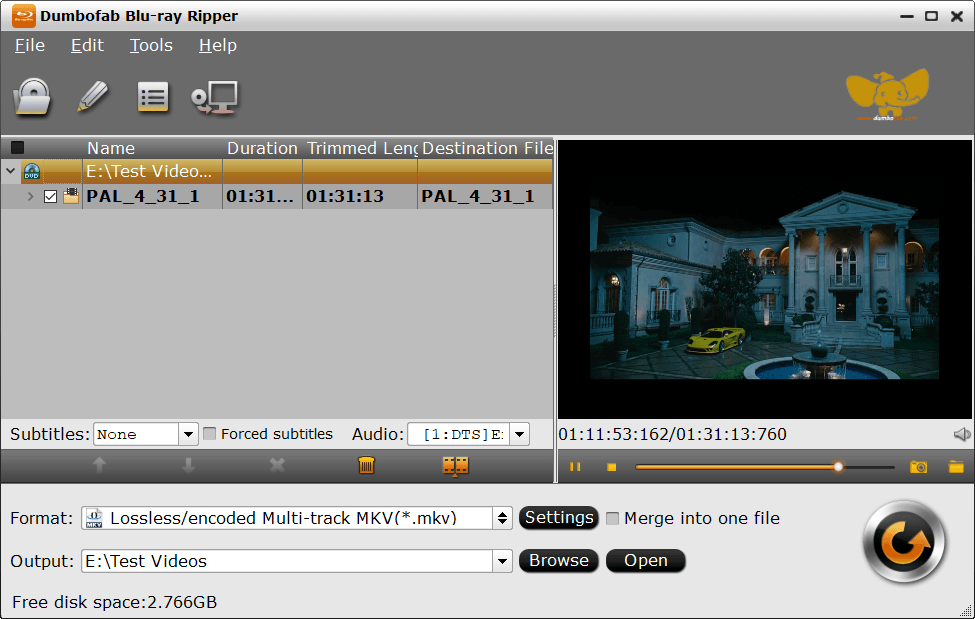
Step 2. Set the Output Format as MKV
Dumbofab Blu-ray Ripper offers a series of presets in MKV formats, such as multi-track MKV (lossless and encoded), 3D MKV, MKV H.265, or high-quality 4K MKV.
① For multi-track MKV outputs, click "Format" bar, move mouse cursor to "Multi-track video" category and then select "Lossless/encoded Multi-track MKV" as the output format. By default, all orginal audio and subtitle tracks in the ISO file are checked for being remuxed into a MKV file. If there are some tracks you don't like, you can click "Settings" button and go to Multi-task Settings window to uncheck and remove them under Audio tab and Subtitle tab. You can also tick off "Encode" option if you want to compress the audio tracks.
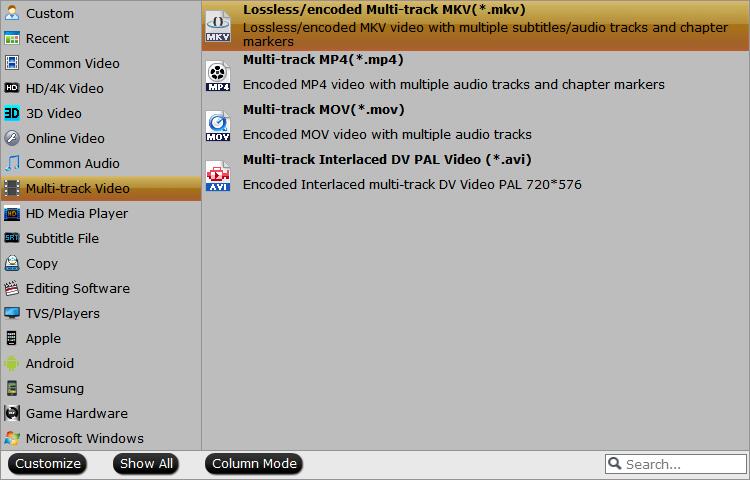
② For MKV H.265 and 4K MKV, simply go to "HD/4K Video" category and select the corresponding profile.
③ For 3D MKV, go to "3D Video" category, you can select 3D MKV profile with SBS anaglyph and top-bottom effect.
If you're not sure which format will play best on your device, you can choose to convert ISO to MP4 or click corresponding device category to choose an output preset designed specifically for phones, tablets, TVs, and other playback devices.
Step 3. Start Converting ISO to MKV
Click "Browse" to specify an destination folder with enough storage space. Once everything completes, hit the big "Convert" button to start conversion from ISO to MKV. With GPU acceleration, you may just need to wait about 5 minutes for the whole conversion process to complete.
#2. MakeMKV - Best Free Tool for Converting ISO to MKV: Only Lossless
Compatible OS: Windows, macOS, Linux
MakeMKV is the first choice of many users when it comes to extracting MKV from a DVD or Blu-ray without quality loss. This tool is specially designed to convert Blu-ray and DVD disc to MKV format. Still, you can load ISO into MakeMKV for conversion.
MakeMKV can convert ISO to MKV with all video and audio tracks, chapters information, and all meta information. It works fast because it doesn't transcode video, just extract. The disadvantage is that it will export a super large MKV file. An lossless MKV file from a DVD ISO image file will take about 4-8 GB. So make sure the hard drive on your computer has enough free space.
Pros:
- ● Cross-platform availability with frequent beta updates.
- ● Free to use while the beta license is active.
- ● Keeps the original video, audio tracks, and chapter markers without re-encoding.
Cons:
- ● It only exports in MKV format.
- ● It lacks buit-in editor for triming, cropping and other features.
- ● The beta key needs to be renewed periodically to keep using the program for free.
[Tutorial] How to convert ISO to MKV free with MakeMKV
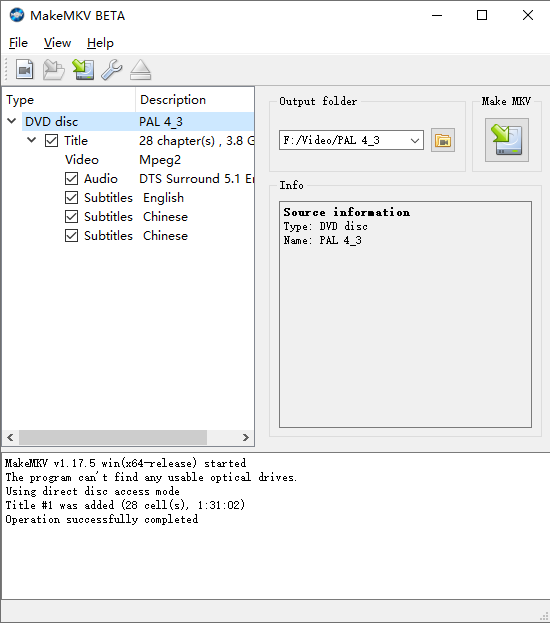
Step 1. Download and instlal MakeMKV from its official webpage. After that, open it on your computer.
Step 2. Import ISO to MakeMKV by clicking the folder icon. The shortcut key is Ctrl+O.
Note: If MakeMKV fails to detect the ISO file, you can also try mounting the ISO as a virtual DVD in Windows first. To do so, simply right-click on the ISO file, and hit the Mount option from the context menu.
Step 3. Set the output folder at right side.
Step 4. Click the Make MKV icon to convert ISO to MKV with MakeMKV.
#3. HandBrake - Best Free Tool for Re-encoding ISO to MKV: Only Shrink
Compatible OS: Windows, macOS, Linux
Can Handbrake convert ISO to MKV format? Yes. Handbrake is a popular and open-source transcoder with fine-grained H.264 and H.265 controls, MKV, MP4, and WebM output, GPU-aware presets, and batch queue support. There are advanced parameters you can tinker with, available for precise encoding settings, effects, parameter adjustment, etc, which, though, are something of a learning curve.
The only difference is, while DumboFab and MakeMKV can losslessly convert ISO, Handbrake will always compress the media. It doesn't support video pass-through (also called video copy or video remux). HandBrake is a transcoder for sources it can read; it is not itself a copy-protection tool, and its own documentation notes that it will not handle commercial DVDs and ISO image files that carry native disc protection. Overall, Handbrake is a great choice if you don't mind quality loss when encoding unprotected ISO to MKV.
Pros:
- ● Open-source software with no feature limitations.
- ● Supports MKV with H.264, H.265, and AV1 encoding options
- ● Flexible output settings with device presets for common players.
- ● Supports Windows, macOS, and Linux.
Cons:
- ● Does not read protected sources by itself.
- ● The interface can feel overwhelming for new users.
- ● Re-encodes video rather than copying streams, so some quality loss is unavoidable.
- ● CPU-only encoding is very slow.
[Tutorial] How to convert ISO to MKV free with Handbrake
Step 1. Download, install Handbrake on your computer. Run Handbrake and click "File" to add the ISO file. Wait for the Handbrake to scan the ISO file, once it's done, you will be brought to the main UI.
Note: If you see the "No valid source or titles found" prompts in Handbrake, it means the software cannot detect ISO or the ISO is protected. You will need way 1 to deal with tricky ISO files.
Step 2. Download, install Handbrake on your computer. Run Handbrake and click "File" to add the ISO file. Wait for the Handbrake to scan the ISO file, once it's done, you will be brought to the main UI.
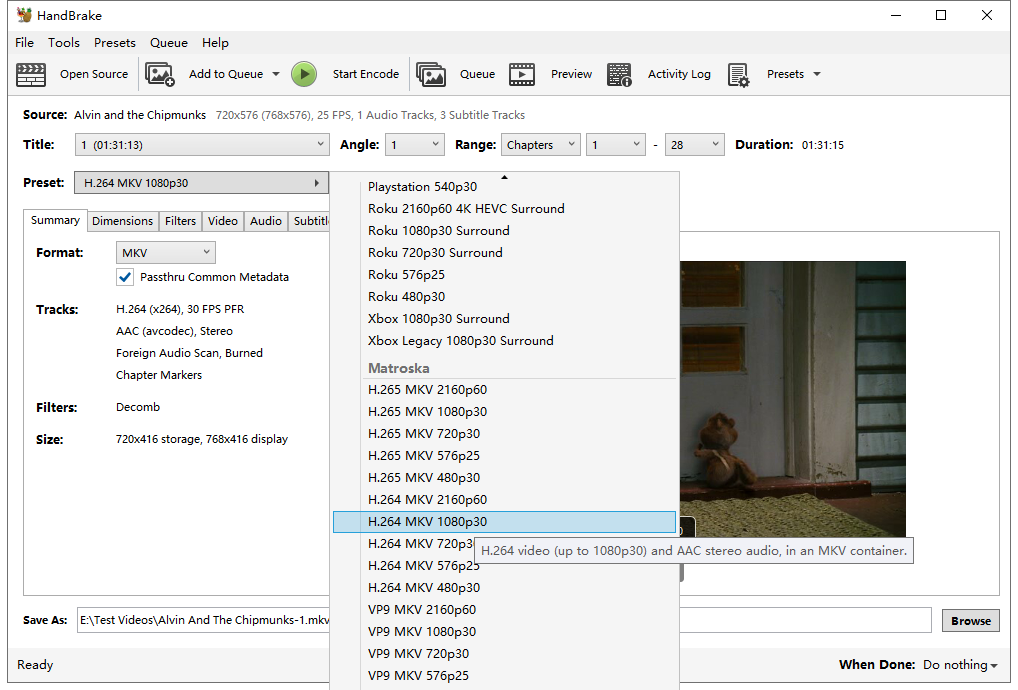
Step 3. Click Preset > Matroska, and then choose a MKV format. You're commended to choose H.264 MKV 480p30 for NTSC DVD and H.264 MKV 576P25 for PAL DVD.
Step 4. Hit Start Encode button to begin converting ISO to MKV. Note: HandBrake will decode the ISO image file and re-encode the video into MKV in H264, H265, or other codecs, during which quality loss will happen.
#4. VLC - Best for Occasional Use to Convert ISO to MKV for Free
Compatible OS: Windows, macOS, Linux
The famous media player VLC offers the ability to convert ISO to MKV and various other formats. Some users may already have it on their computer. So there's a good chance that you don't need to get extra software to encode ISO image files to MKV.
However, there are things you need to know when transcoding ISO to MKV using VLC. VLC doesn't support ISO image files with copy protections, though it has no problem playing them. You don't have many options to control the outputp quality or settings. VLC is not the best ISO to MKV converting solution, but it will work if you have only a few of unencrypted ISO files to convert.
Pros:
- ● No cost, no ads, no spyware.
- ● Work on Windows, macOS, and Linux.
- ● Provide built-in support for most video/audio formats.
- ● Can directly read and convert DVD ISO files.
Cons:
- ● Must convert one file at a time manually.
- ● Cannot process most commercial DVD ISOs.
- ● No advanced control over encoding parameters.
- ● Multiple conversion failures in our tests.
[Tutorial] How to convert ISO to MKV using VLC
Step 1. Download, install and launch VLC media player on your computer.
Step 2. In the VLC menu bar, click on "Media" and then select "Convert/Save".
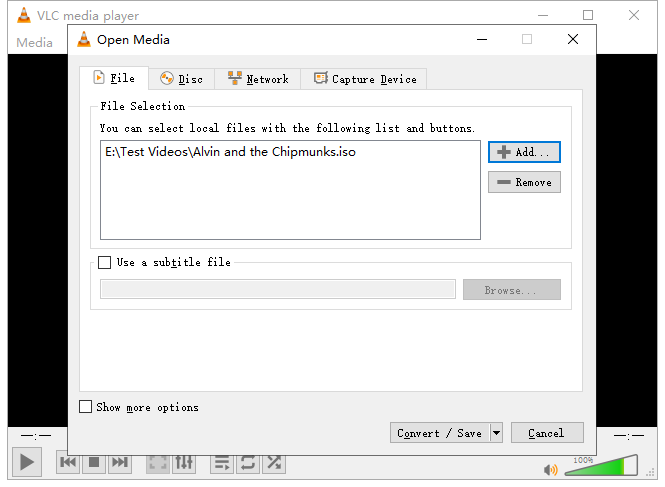
Step 3. In the "Open Media" window, select the "File" tab. Check the "+ Add" button to choose the ISO file you want to convert. Then, click on the "Convert/Save" button.
Step 4. In the "Convert" window, select the MKV format as the desired output format. If you cannot find MKV profile from the drop-down menu of Profile, click the "Create a new profile" button and then choose MKV under the "Encapsulation" tab. You can also adjust the video and audio settings if needed.
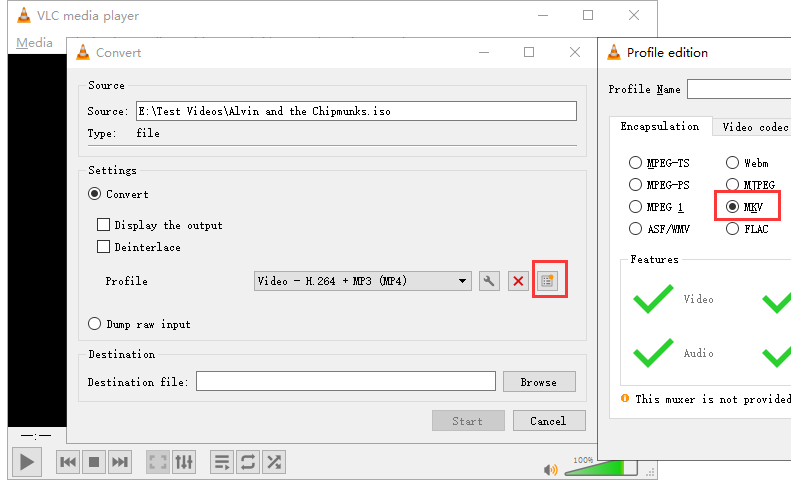
Step 5. Click on the "Browse" button next to the "Destination file" field and select the location where you want to save the converted MKV file.
Step 6. Click on the "Start" button to begin the conversion process. VLC will start converting the ISO file to MKV format.
#5. FFmpeg - Best for Advanced Users or Engineers Who Know A Command-line Environment
Compatible OS: Windows, macOS, Linux
FFmpeg is the ultimate, professional-grade solution for ISO to MKV conversion, designed to meet the most advanced user needs. It essentially can change video formats of all sorts, the supported input video codecs range from ISO disc images, MP4, MKV, MOV… Moreover, this tool offers unparalleled control over quality and supports fast GPU encoding.
However, just because it is capable of doing everything doesn't mean everyone can benefit from this powerful video converter. It is a complex, command-line tool requiring manual ISO mounting and deep knowledge of command syntax, making it unsuitable for beginners. So you can't convert ISO image files with simple clicks as you're doing with DumboFab Blu-ray Ripper or other paid or free tools.
Pros:
- ● A free ISO converter for Windows, macOS and Linux.
- ● Leverage hardware acceleration for faster encoding.
- ● Support almost any video and audio format.
- ● Allows meticulous tuning for the best size-to-quality ratio.
Cons:
- ● Require deep knowledge of command-line syntax, codecs, and parameters.
- ● Lack the intuitive visual interaction of other converters.
- ● No official technical support.
[Tutorial] How to convert ISO to MKV with FFmpeg
Step 1. Install FFmpeg and Open the Terminal.
First, download FFmpeg from its official website and make sure it is properly installed. Then open a terminal window:
- ● On Windows, press Win + X and choose PowerShell/Command Prompt.
- ● On macOS and Linux, simply launch the built-in Terminal.
Step 2. Mount the ISO file.
To access the ISO content, mount it as a virtual drive. Windows and macOS users can simply double-click the ISO to open it like a disc. Linux users need to mount it manually using the following command:
- sudo mount -o loop /path/to/file.iso /mnt/iso
Inside the mounted disc, open the VIDEO_TS folder and choose the .IFO file that corresponds to the main title (e.g., VTS_01_0.IFO). Selecting the IFO file ensures FFmpeg reads the entire movie in the correct sequence, instead of converting only a single VOB segment.
Step 3. Convert the ISO to MKV with FFmpeg.
Run the following command (adjust the path to match your system):
- ● ffmpeg -i "/path/to/VIDEO_TS/VTS_01_0.IFO" -map 0 \
- ● -c:v libx264 -crf 18 -preset slow \
- ● -c:a aac -b:a 192k \
- ● -c:s mov_text output.mkv
This keeps all audio and subtitle tracks, applies high-quality H.264 encoding, converts audio to AAC, and ensures subtitles remain compatible with MKV. For a faster but slightly less efficient conversion, replace -preset slow with fast.
After conversion, eject or unmount the ISO just like removing a normal drive. This method outputs a high-quality MKV file suitable for playback on TVs, phones, PCs, and streaming devices.
Note: Some commercial DVD ISOs use copy protection. If FFmpeg cannot read the file, install libdvdcss on macOS/Linux or make sure VLC is installed on Windows before converting.
FAQs about ISO and MKV
Can any ISO file be converted to MKV?
No. Only ISO files that contain readable video content, such as DVD ISO or Blu-ray ISO images, can be converted to MKV. If the ISO is a data image that only contains documents, software installers, photos, or mixed files, it cannot be converted into a playable MKV movie in the normal way.
Can MakeMKV convert ISO to MKV?
Yes, MakeMKV can natively open and convert ISO image files directly into MKV files without needing to mount the ISO first.
Is MKV better than ISO image file?
Whether an MKV file is better than an ISO image file depends on your goal, but MKV is generally preferred for everyday movie watching and storage because it has broader device compatibility and smaller file sizes. An ISO is a bit-for-bit disc backup.
Conclusion
The best free ISO to MKV convertr goes to the open source software undoubtedly. However, they are not competent to either convert copy-protected ISOs or convert files in a fast manner. Taking the most concerning factors into account, the running system, ease of use, supported ISO files, the conversion speed, and the price, DumboFab Blu-ray Ripper is actually the best option for you to convert ISO image files, rip and backup your Blu-rays and DVDs without any fuss. And don't forget it can do far more than this. Download and unlock more features in DumboFab Blu-ray Ripper now!